
Green Screen Remover
Green Screen Remover lets you upload PNG, JPG, or WEBP and remove the background in one step. Get a cutout you can save—especially handy for green or blue screen photos.
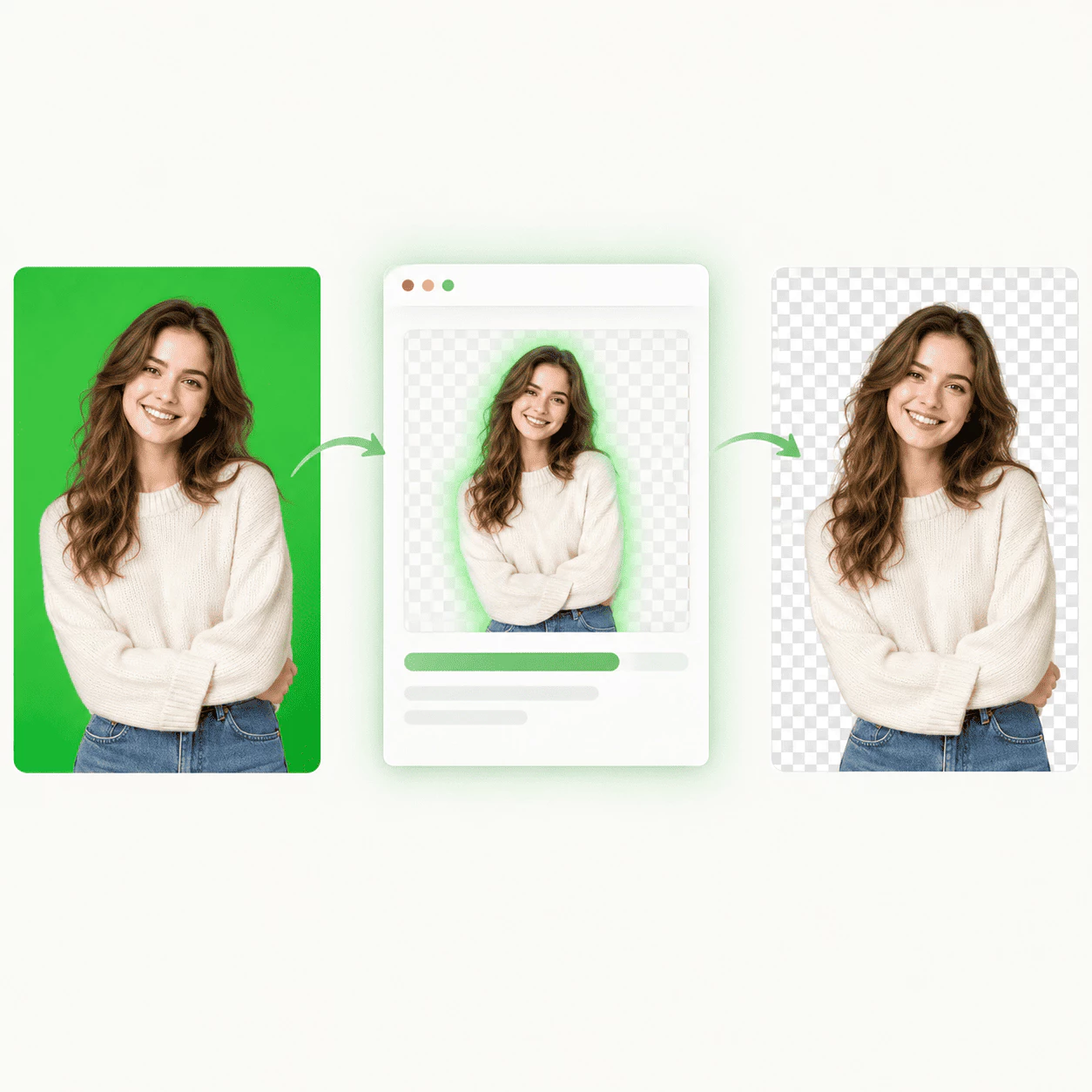
What Is Green Screen Remover?
Green Screen Remover removes the background from your photo in the browser. Upload your image, run the job, and save the cutout.
- Upload Your PhotoAdd your photo in Green Screen Remover. Green or blue screen shots are a common starting point because the backdrop is easy to strip.
- Background RemovedGreen Screen Remover processes your image and drops the backdrop so the subject stays on a transparent layer. No manual masking or layer work on your side.
- Download the CutoutSave the cutout when processing finishes. Use it in posts, slides, or design tools.
Why Use Green Screen Remover
Background removal should stay simple. Here is what Green Screen Remover focuses on—one job done well, keyed photos in mind, and a file you can use right away:
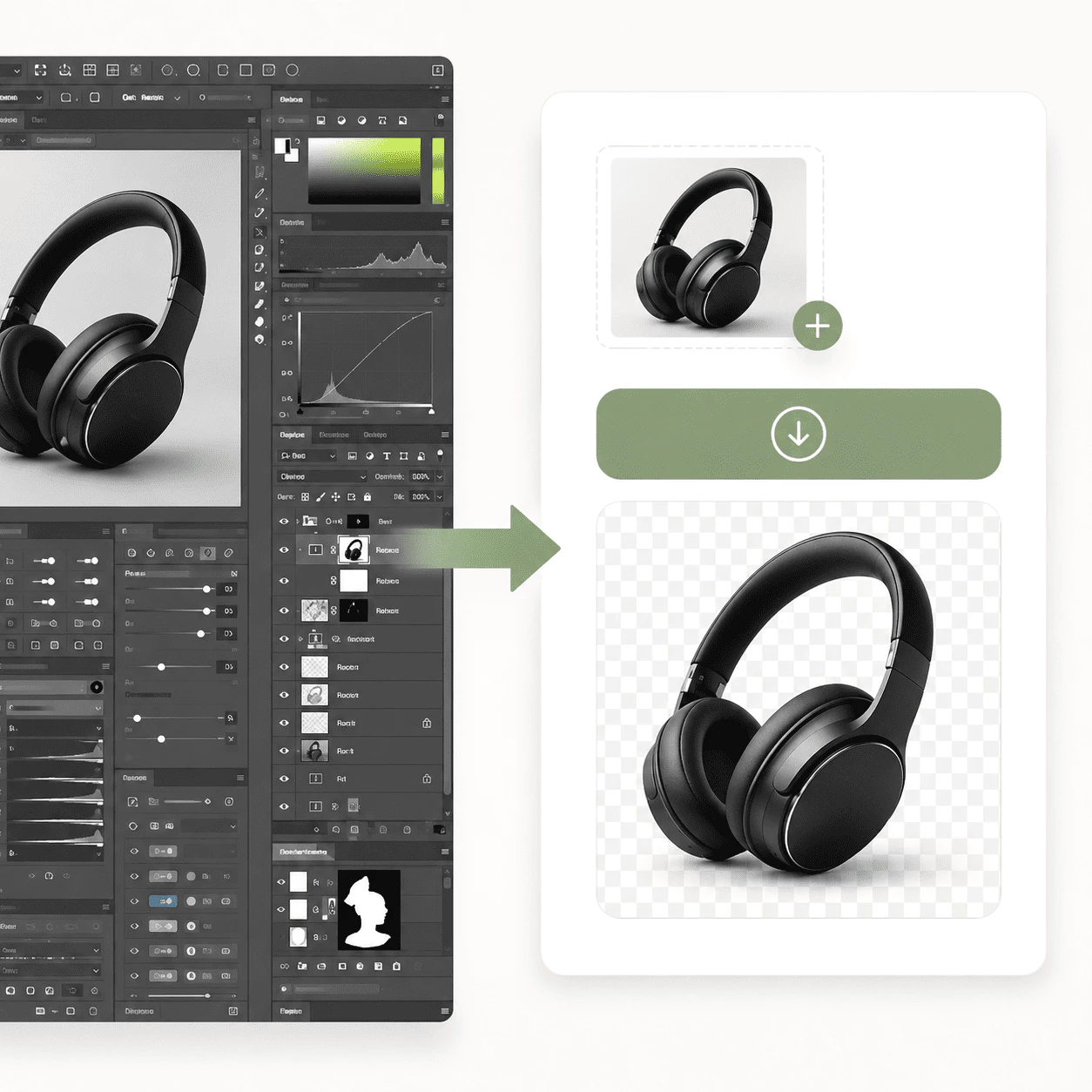
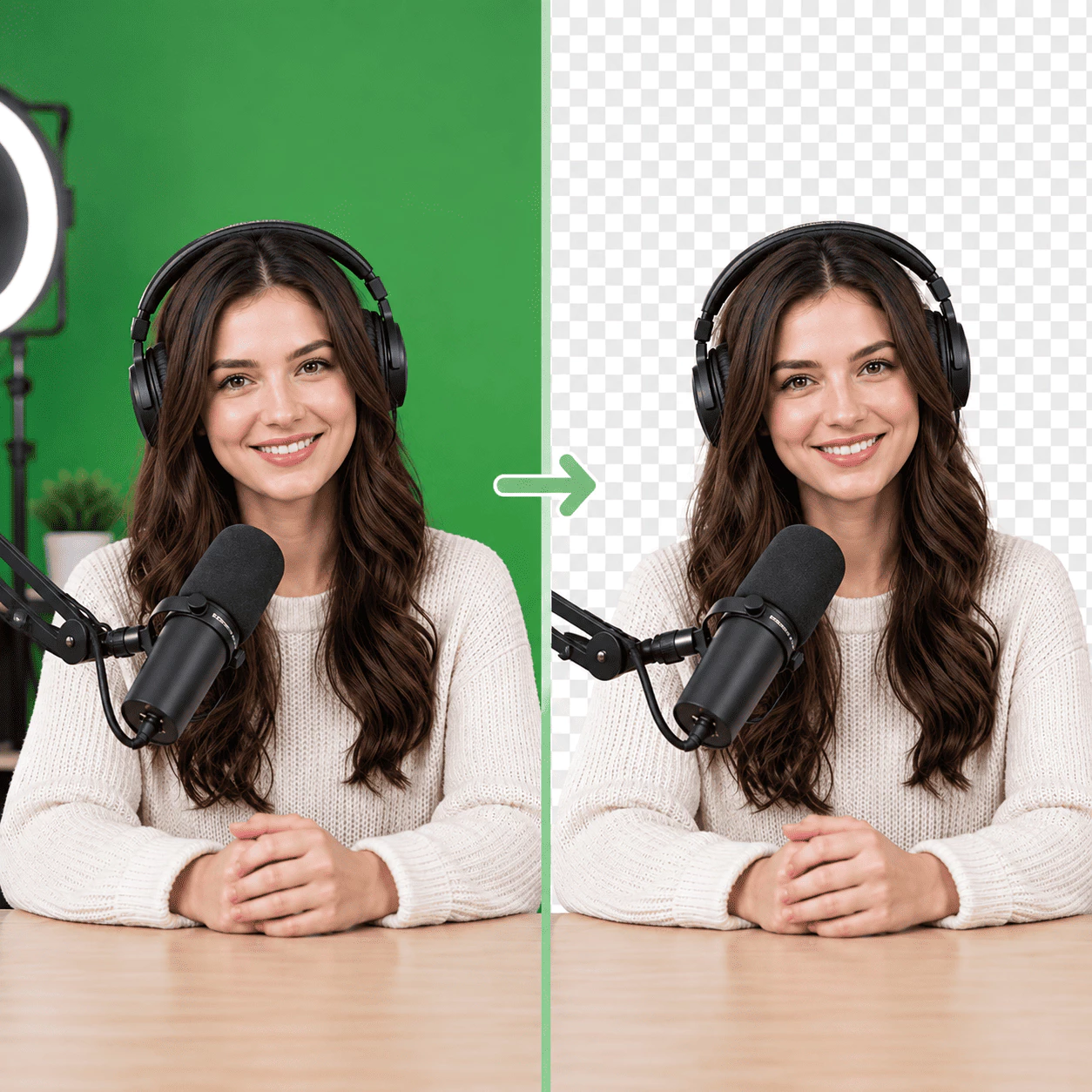

Green Screen Remover Core Features
Green Screen Remover keeps background removal simple for photos—especially green or blue screen shots. Everything runs in your browser so you can turn keyed footage into a reusable cutout without installing extra software:
Remove the Background
Upload your image and let the tool strip the backdrop automatically. You get a clean cutout without drawing masks, refining edges by hand, or spending time picking the subject in a desktop editor. The flow is built for green, blue, or busy backgrounds so you can focus on your content instead of manual selection work.
Common File Types
Bring PNG, JPG, or WEBP from your camera roll, screen capture, or export from another app. These everyday formats cover most uploads from phones, cameras, and design tools, so you rarely need to convert files before you start background removal.
Transparent Output
Results can keep a clear background so you can place the subject on a new scene, solid color, or branded layout in another app. Transparent output makes compositing in slide decks, editors, and social tools straightforward when you want the subject to sit on top of anything else.
No Extra Editing Suite
This is background removal only—not a full photo editor. Upload, process, and download without learning layers, brushes, or complex menus. When your goal is just to lose the backdrop, a single-purpose tool keeps the workflow short and predictable.
Download Your Result
When background removal finishes, save the image to your device and move on to the next step in your workflow. You download when processing completes and reuse the cutout in thumbnails, campaigns, or any project that needs a subject on its own.
Online in Your Browser
Run the remover from desktop or tablet in a modern browser. Upload and save the result from one page without installing plugins or native apps, which helps when you are on a shared machine or away from your usual editing setup.
Remove a Background in 3 Steps
From upload to download:
Upload Your Photo
Drag in or choose your photo—often a green or blue screen picture.
Remove the Background
Run Green Screen Remover and wait for the processed image. The backdrop is taken out so the subject remains.
Download
Save the cutout and use it in thumbnails, posts, or any project that needs it.
Built for Better Cutouts
A straight path from photo to cutout—without promising features this tool does not offer.
Finish and Save
Flexible
Upload a photo, remove the background, then save when the cutout looks right.
Simple Flow
Clear
Upload, remove the background, and save. Fewer steps mean less time between your photo and a usable cutout.
Green and Blue Screens
Reliable
Solid studio backdrops are what most people use this for—stream stills, product shots, and quick portraits on a green or blue wall.
Common Questions about Green Screen Remover
Short answers about Green Screen Remover—what the tool does, who it is for, and how to get your cutout. Still stuck? Contact us anytime.
What is Green Screen Remover?
Green Screen Remover is an online tool that removes the background from your photo. You upload an image, run processing, and save the cutout—often starting from green or blue screen shots, though many everyday photos work too. The service is meant for quick isolation of the subject so you can reuse the result in other projects.
Why should I use Green Screen Remover?
When you only need the background gone, a focused remover beats opening a large editor. Upload once, run background removal, and reuse the cutout for thumbnails, ads, stickers, profile images, or pitch decks. You avoid learning heavyweight software for a job that should take minutes.
How do I use Green Screen Remover?
Choose or drag in a PNG, JPG, or WEBP file, start background removal, and wait while the image processes. When the job finishes, preview the result and save it to your device. The whole flow stays on one page from upload through download.
Who is Green Screen Remover for?
Streamers, designers, marketers, content creators, and anyone with a green or blue screen photo—or any shot where the subject should stand alone. It fits people who want a cutout without investing time in advanced masking or chroma-key tutorials.
Is Green Screen Remover easy to use?
Yes. Upload your photo, start background removal, and save when you are done—all on one page. Most people pick it up on the first try because the steps stay short and clear, with no hidden panels or settings you must tune before seeing a result.
What can I do with my cutout?
Use it for YouTube or Twitch thumbnails, social posts, ad creatives, profile photos, presentation slides, or sticker-style graphics. Save the file and place the subject on any background you like in the tools you already know, from Canva and Keynote to Photoshop and your stream overlay software.